Preparing a KMD return
Prepare the Estonian KMD VAT return in Arvello: figures calculated from your documents, with KMD INF and VD annexes and a checklist to review before filing.
The KMD is the Estonian VAT return — the form every VAT-registered company files with EMTA (the Estonian Tax and Customs Board) for each period. In Arvello you don't fill it in; you generate it. The return is calculated from the sales and purchase documents already in your account, and your job is to review it rather than type it.
This page covers how that calculation works, how to trace any figure back to the documents behind it, and what happens once you approve.
Preparing a return
VAT returns live under Company Tax → VAT Returns: one row per month with its status, due date and net VAT amount, with a year selector for going further back.
Months from before Arvello took over your filings show Filed outside Arvello instead of a due date. This comes from the tax-filing handover answered during onboarding: returns for those periods belong to whoever filed them at the time — typically a previous accountant — so no deadlines are shown, and filing the same period again would create a duplicate declaration. Prepare anyway remains on those rows if you want a draft of the figures for your own records.
Months that no VAT registration reaches — before the company registered, after it deregistered, or between two registrations — show Not VAT registered: no return is due for them, so there is no due date and nothing to prepare. The registrations are recorded under Company settings.
How the figures are calculated
Each invoice line carries a tax code, and the tax code determines which KMD line the amount lands on — domestic 24% sales feed line 1, EU supplies feed line 3, input VAT feeds line 5, and so on. Amounts in foreign currencies are converted to euros.
On an invoice, VAT is calculated and rounded line by line: that's what your customer pays and what your books record. The KMD works from totals instead — for sales, it declares the taxable amount at each rate, and EMTA calculates the output VAT from each rate's total. Arvello calculates the return the same way, so the output VAT on your sales can differ from the VAT on your sales invoices by a few cents, and by more in a month with many invoices. For example, 100 sales of €10.27 plus 24% VAT carry €246.00 of VAT on the invoices but €246.48 on the return. The difference comes from rounding and isn't an error.
Purchases whose VAT you account for yourself — reverse charges and intra-Community acquisitions of goods — count on both sides of the return: their taxable amount is added to the line for their rate, and the VAT on it is also deducted as input VAT. That's why the VAT Summary's Standard rate (24%) row can be higher than your sales. Those bought from other EU countries also appear on line 6, which is for information only; the VAT Summary shows it as Intra-Community acquisitions of goods and services. Those bought from outside the EU, and accommodation at 13%, appear on the information line 7 instead, shown as Other acquisitions of goods and services subject to VAT (see VAT rates & tax codes). So does the domestic reverse charge on property, metal waste, precious metals and metal products bought from Estonian businesses, which also has its own subline 7.1.
Selling those goods under the domestic reverse charge puts the sale on the information line 9, not line 1: the buyer declares the VAT (see Special VAT cases).
Draft returns also keep themselves current: when an invoice changes, a bank transaction is reconciled or an expense is finalised, Arvello recalculates any draft return for the affected period in the background. A Recalculate button is there for the impatient.
Import VAT goes on lines 5 and 5.1, and a company EMTA allows to declare import VAT on the return also has line 4¹: see Import VAT in Special VAT cases.
A few KMD lines, and the VD's triangulation column, have no path in Arvello: see Unsupported KMD lines.
Reviewing before submission
The detail view opens with a summary: output VAT (what you've charged), input VAT (what you can claim back), the net position — VAT to pay or a refund — and the filing deadline.
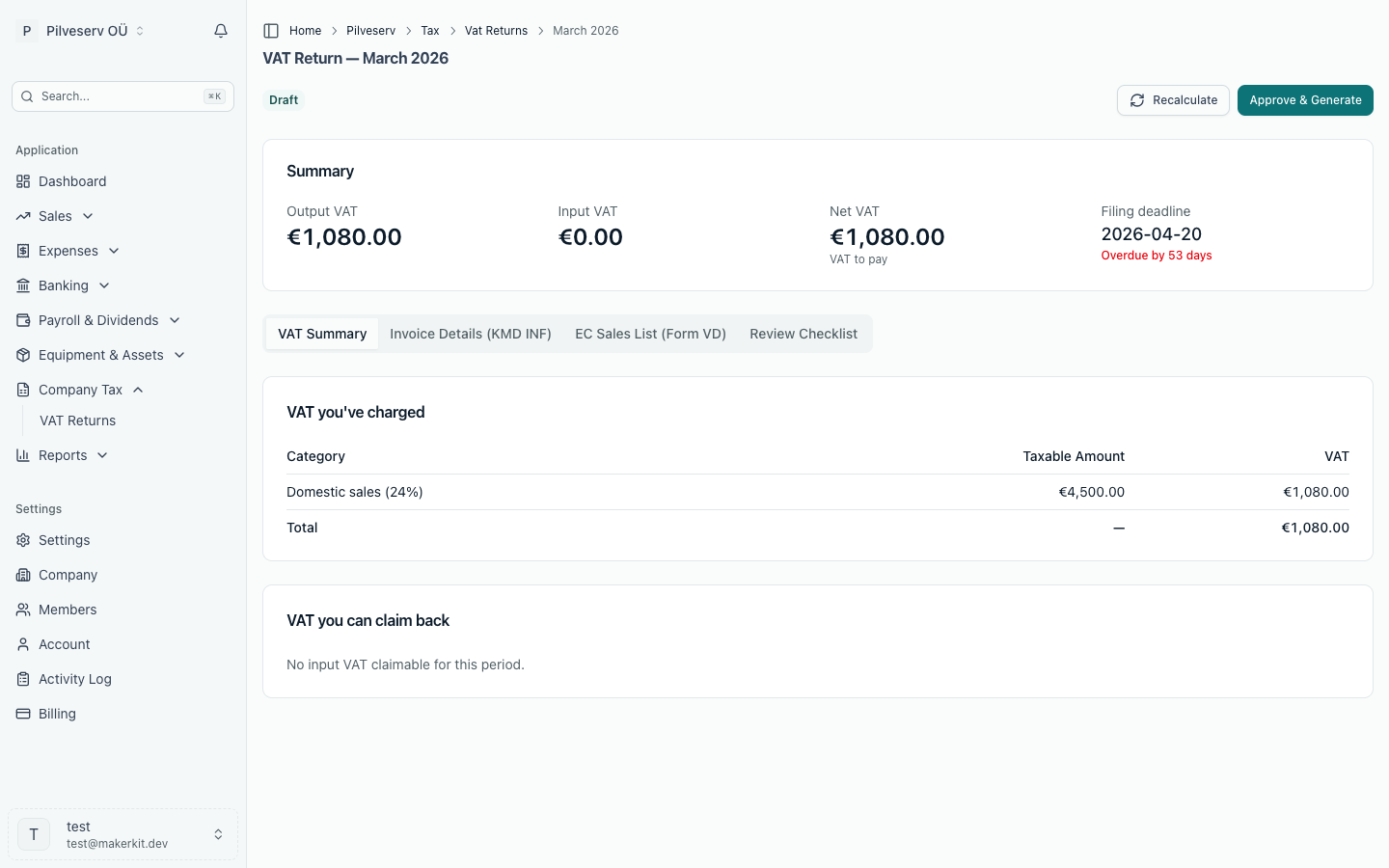
Below the summary, four tabs let you trace every figure:
- VAT Summary — output and input VAT broken down by category: domestic sales at each rate, EU services and goods, exports, exempt supply, and the VAT claimed on expenses.
- Invoice Details (KMD INF) — the invoice annex EMTA requires for Estonian business partners whose invoices in the month total €1,000 or more excluding VAT. Sales partners appear in Part A, purchase partners in Part B. Each partner is listed by its registry code, so one whose contact has no code can't be listed — the review checklist names it (see below). A business outside Estonia is listed by its Estonian non-resident code — see Special VAT cases, which also covers codes 02 and 11 and what the annex leaves out. Credit notes count towards the €1,000 separately from invoices and are listed with a minus sign — see Credit notes & refunds. A purchase under the domestic reverse charge is in Part B too, with the VAT you declare yourself and the exception code 12 — see Special VAT cases. A Part A invoice that also holds 0%, exempt or out-of-scope amounts (a cost passed on at No VAT, for example), or amounts at two or more rates, is filed with the exception code 03, as the KMD INF form requires; Arvello adds it to every row of that invoice. Selecting a partner row shows its invoices — number, date, rate and amount.
- EC Sales List (Form VD) — intra-Community supplies of goods and services, listed by partner with country and VAT number. Only a customer in another EU country with a VAT number on file is listed; the review checklist names any intra-Community sale left out (see below). Goods sold to a Northern Ireland business are listed under XI when its VAT number starts with XI, though the client's country is the United Kingdom; services to it aren't intra-Community. Two 0% sales follow their own VD rules: see Special VAT cases.
- Review Checklist — automated checks over the whole period.
Each row of the VAT Summary matches a KMD line and shows the amount the return files on it, minus signs included. The exception is the VAT column under VAT you've charged: the return doesn't file output VAT, so those amounts are worked out from each rate's total, the way EMTA works them out (see above). Zero-rated sales are split the way the KMD splits them: Intra-Community supplies of goods and services (0%), with Intra-Community supply of goods beneath it for the goods alone, Exports of goods (0%), and Other zero-rated sales (0%) — the rest of line 3, such as services sold to customers outside the EU, which the KMD reports on line 3 only (see VAT rates & tax codes).
Under VAT you can claim back, Deductible input VAT is all the input VAT on the return: from purchases at every rate, including the VAT you self-assess on reverse-charge purchases. Of which on fixed assets beneath it is the part on expense lines booked to Fixed assets (line 5.2) — see Fixed assets. Of which on cars used only for business (line 5.3) and Of which on cars also used privately (line 5.4) are the parts on expense lines for a company car, each with its number of cars — see Company cars. Lines 6, 6.1 (goods alone), 7 and 7.1 (KMS § 41¹ property and metals) are taxable values rather than VAT, so they sit in the Taxable Amount column.
The review checklist
The checklist flags anything that would make the return wrong or incomplete:
- Unrecognised tax codes — invoice lines whose tax code Arvello doesn't recognise are excluded from the calculation entirely, so output VAT may be understated or input VAT left unclaimed. An EU One-Stop Shop code on an expense counts here too, since those codes are for sales only. These appear as errors with a link to the affected documents.
- Missing invoice numbers on the KMD INF annex — every annex row carries the number printed on the invoice, and EMTA matches your Part B row against the seller's own Part A using it. An expense created from a receipt or a bank match often has no supplier invoice number yet, so this appears as an error with a link to the affected expenses. Open the expense and use the pencil beside Supplier Invoice / Reference to add it — that one field stays editable after an expense is finalised, precisely so this can be fixed without an amendment. The return recalculates and the error clears.
- KMD INF partners without a registry code — the annex lists every partner by its registry code, so an Estonian customer or supplier whose contact has none is left out of it, however large its invoices. The usual case is a supplier created from an e-invoice that carried only a VAT number. Once a partner's invoices in the month reach €1,000 — below that the annex wouldn't list it anyway — the checklist names it, customers and suppliers in separate entries: up to five in each, largest first, with how many more. Select a name to open the contact's form, search for the company in the Name field and pick it from the Business Register list: that fills in the registry code, and saving recalculates the return with the partner on the annex. Invoices to private individuals aren't declared on KMD INF, so a customer set up as a Private individual is never named; if a named customer is really a private person, change its customer type instead. A supplier that charges VAT is a business, a sole trader (FIE) included, so a named supplier set up as a Private individual needs its customer type changed to Business before the search appears. The warning doesn't stop you approving the return, because some partners can't get a code here: a notary or bailiff, who is declared by personal ID code, or a business the register search doesn't find. Invoices from a supplier bound by professional secrecy, such as a lawyer, don't have to be declared at all, so such a name can be left as it is. A foreign company with an Estonian VAT number but no Estonian non-resident code on its contact is named too: enter the code on its form.
- Unmatched bank transactions — unreconciled transactions in the period may hide undeclared income or unclaimed expenses.
- Missing receipts — expenses claiming VAT with no receipt attached; the VAT may not be claimable.
- VAT numbers the VD file can't take — sales on the VD whose customer VAT number isn't only letters and digits, at most 12 after the country code. e-MTA refuses the whole VD file over one, so this is an error that stops approval. The invoice keeps the number it was issued with, so each linked invoice is corrected with Fix and re-issue, or a credit note and a new invoice. New invoices can't get here: finalising refuses such a number.
- Intra-Community sales left off the VD — sales invoices with an intra-Community 0% code whose customer has no VAT number or country on file. The return still counts them on line 3, but neither the VD nor line 3.1 can list them, so this is an error that stops approval. Up to five are named, each linking to the customer's form: adding the VAT number brings the sale onto both. If the customer has no VAT number, the 0% code is wrong: correct the invoice with Fix and re-issue, or a credit note and a new invoice. New invoices can't get here for goods: finalising refuses 0% goods to a customer whose VAT number VIES hasn't confirmed (see Creating invoices). The country is the one the VAT number names, so a German company buying under a French number is listed under France, and one buying under a number from outside the EU (GB, NO) isn't on the VD at all.
- Intra-Community code for a customer outside the EU — the same code on a sale to a customer in Estonia or outside the EU. That's no intra-Community supply, so the VD and line 3.1 are right to leave it out, and a service to a customer outside the EU is right on line 3; this is a warning to check the invoice's tax code.
- EU invoices without a valid VAT number — sales to EU business clients charged Estonian VAT because no validated VAT number is on file. Verifying the client's number clears the warning but doesn't change an invoice already issued: if the client is VAT registered, correct the invoice too, with Fix and re-issue or a credit note and a new invoice under the EU code. Customers set up as a Private individual are never flagged: for most sales to a private person in another EU country, Estonian VAT is correct below the EU distance-selling threshold (see EU One-Stop Shop), and lines with an OSS code are taxed in the customer's country and are never flagged either.
- EU consumers charged Estonian VAT under OSS or IOSS — while your company is registered for the EU One-Stop Shop or the import scheme, sales that still carry Estonian VAT to customers in other EU countries with no valid VAT number: private persons, or businesses that aren't VAT registered. A credit note counts by the date of the sale it corrects, so crediting a sale from before the registration isn't flagged. Distance sales of goods and telecom, broadcasting and electronic services then belong on the OSS return, and goods imported under IOSS on the IOSS return, under the scheme's code; other services to private customers stay Estonian, so check each one. While this entry shows, the EU invoices entry above doesn't show its all-clear.
- Non-EU suppliers on line 6 — finalised expenses for services that carry the reverse-charge code for EU suppliers although the supplier's contact — its country and VAT number, whichever are set — points outside the EU, so the return lists them on line 6 rather than line 7. A finalised expense can't be edited, so this return still lists it on line 6; the VAT on it is the same either way. What can change is future expenses: a recurring expense with that code creates another each time it runs, so change the code there, and give new expenses from such suppliers a non-EU supplier code.
- Estonian suppliers on line 6 — finalised expenses for services that carry the reverse-charge code for EU suppliers although the supplier's VAT number is Estonian, and so is its country if one is set. Line 6 is for suppliers in other EU countries: a reverse charge between two Estonian businesses is the domestic one, which the Estonian supplier code files on lines 7 and 7.1 and in KMD INF. A reverse-charged e-invoice from an Estonian seller used to get the EU code. A finalised expense can't be edited, so this return still lists it on line 6. What can change is future expenses: a recurring expense keeps its code until it's changed there. The Estonian supplier code is for the goods the domestic reverse charge covers; on anything else an Estonian business charges Estonian VAT.
- Domestic reverse charge from outside Estonia — finalised expenses with the Estonian supplier reverse-charge code whose supplier's contact — its country and VAT number, whichever are set — points outside Estonia. The domestic reverse charge only applies between two businesses registered for VAT in Estonia, and KMD INF lists Estonian partners only, so the return shows these on line 7.1 with no KMD INF row to match. A finalised expense can't be edited, so this return still lists it. What can change is future expenses: a recurring expense keeps its code until it's changed there, and a purchase from a foreign business takes the code for where the supplier is — see VAT rates & tax codes.
- Special VAT cases — checks for Estonian VAT from a supplier with no Estonian VAT registration, cash-based VAT accounting (yours or a supplier's), partly deductible input VAT, line 4¹ and new vehicles sold to other EU countries. Some stop approval; see Special VAT cases.
- Draft expenses — expenses still in draft aren't counted. The checklist counts the drafts dated in the period that carry VAT, and those with VAT you account for yourself — reverse charges and intra-Community acquisitions, recorded at 0% on the expense. Finalising a draft with VAT brings its input VAT into the return; finalising a self-assessed one puts it on both sides of the return (see above) and on its information line, and a domestic reverse charge can add a KMD INF row too. A draft with neither, such as an exempt purchase, wouldn't change the return and isn't listed; supplier credit notes have their own entry, below.
- Supplier credit notes waiting — a draft supplier credit note, or a credit note received as an e-invoice that hasn't been linked to its invoice yet, isn't counted either. The checklist lists the ones that belong to this return — those crediting an invoice of this period, and those dated in this period whose invoice is in a month already filed. Once finalised, a credit note reduces the input VAT on the return. A credit note with no VAT of its own is listed when you account for the VAT yourself — a reverse-charged service, goods bought from another EU country — because it lowers both the VAT you self-assess and the input VAT you deduct by the same amount.
- Depreciation pending — if you have fixed assets, the month's depreciation run can be triggered straight from the checklist.
- Large refund — a refund out of proportion to your output VAT is flagged, since EMTA tends to look harder at those.
- VAT registration — sales coded Not subject to VAT, or booked from bank lines, inside a registration (see Company settings), and the figures for the month a registration ends (see Deregistering from VAT).
Approving — and what locks
Approve & Generate moves the return to Ready to Submit, generates the files e-MTA takes — the KMD XML and, when the month has intra-Community supplies, the VD XML — and locks the period. From that point, invoices and expenses that belong to the period can no longer be finalised or edited, and a payment that would move VAT into or out of it is refused — Arvello will tell you "The VAT return this document is declared in is already approved or filed. Find it under Company Tax → VAT Returns: if it's only approved, reopen it as a draft; if it's filed, amend it." A supplier's invoice that reaches you after the month was filed isn't refused: it goes on the return for the month it arrived. The one exception is an invoice whose lines all use EU One-Stop Shop codes: it isn't on the KMD, so the lock doesn't apply to it.
Until the return is filed, the approval can be undone. Open the return and select Reopen as draft: the generated files are cleared, the period unlocks and the return goes back to Draft, so you can change its documents, recalculate and approve again. Only do this for a return you haven't uploaded in e-MTA — if you have, select Mark as Submitted instead. Once a return is Submitted or Accepted by EMTA, changes go through an amendment.
A return moves through the statuses Draft, Ready to Submit, Submitted, Accepted by EMTA, and Rejected — with a brief Submitting in between while a direct X-tee submission is on its way to EMTA. Once approved, the next step is filing it with EMTA; if the data changes later, see amending a return.