Reconciling transactions
Match Estonian bank transactions to invoices, expenses, payroll and EMTA tax payments — auto-matching handles the obvious, one guided queue does the rest.
Reconciliation is telling Arvello what each bank transaction actually was: a client paying an invoice, a supplier being paid, salary, tax, or money moving between your own accounts. Each answer creates the right bookkeeping entry behind the scenes — which is what keeps your reports and VAT figures truthful.
Every transaction sits in one of three states: Needs review (nothing decided yet), Done (matched or categorised, with a journal entry behind it) and Personal / Excluded (not business activity). The aim: nothing left in Needs review.
The Reconciliation screen
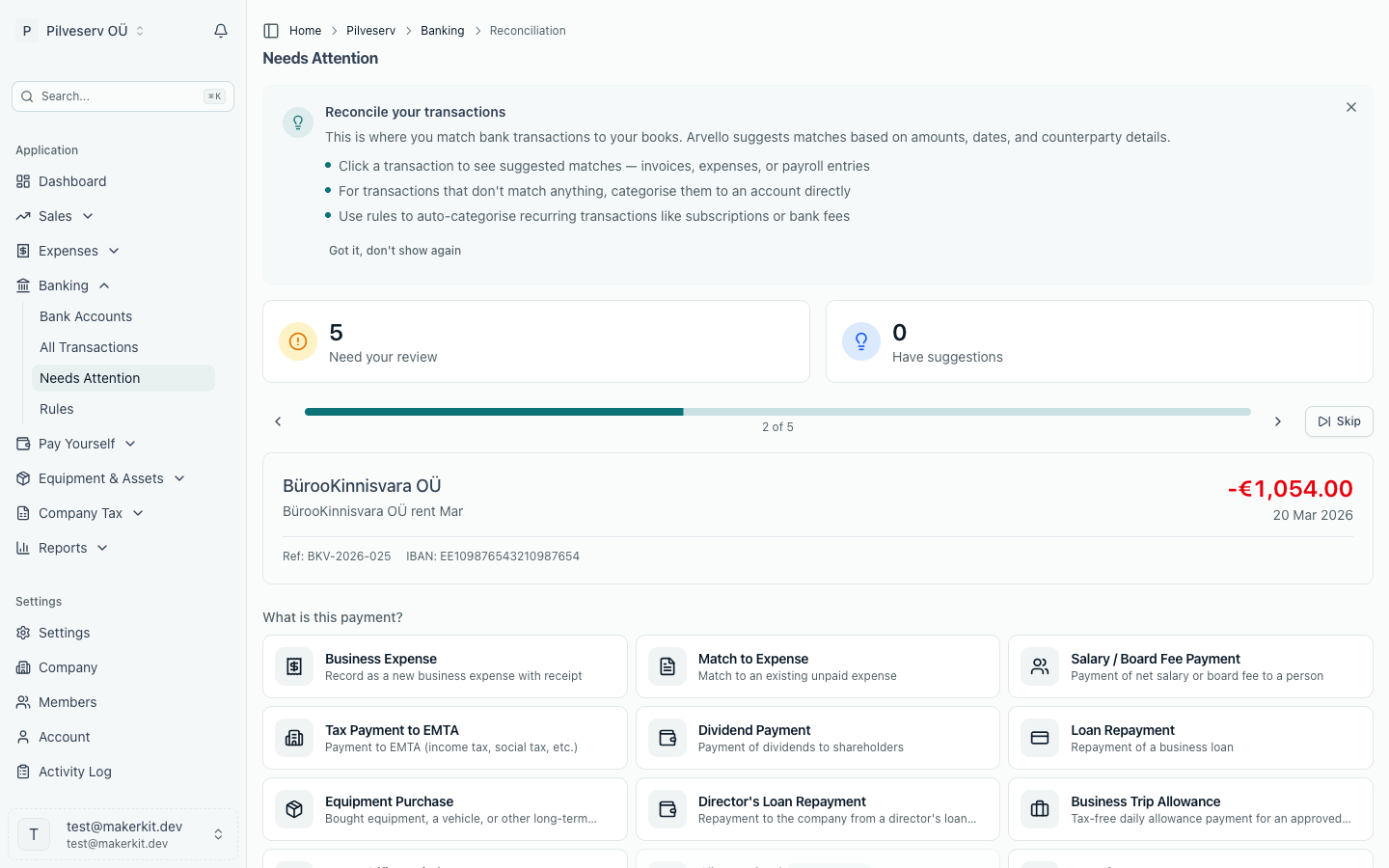
Banking → Reconciliation is where reconciliation happens. Two counters show how many transactions need review and how many already have a suggestion attached. Below them, Arvello presents one transaction at a time — date, amount, who paid or was paid, the reference — with Previous, Next and Skip controls. When the queue reaches zero you get an "All caught up" message and a brief burst of confetti, which is as excitable as accounting software ought to get.
Matching a transaction
When Arvello has a likely invoice, a "Possible match" banner shows it. Confirm records the payment, creates the journal entry and marks both as done; Not this dismisses the suggestion. If the reference matches but the amount doesn't, it's flagged as a possible partial payment — confirming records a part-payment, and a progress bar tracks what remains to allocate.
If you already recorded the payment by hand (with Record Payment on the invoice) and the same money then arrives through a bank feed or import, Arvello notices: the banner offers Link to existing payment instead of Confirm, so the movement is attached to the payment you already have rather than recorded a second time. The same guard appears in the manual matching form — selecting an invoice that carries an identical unlinked payment shows a warning with the link option, and Confirm stays available for the rare case where the movement genuinely is a separate payment of the same amount. When more than one unlinked payment of that amount is equally close to the movement's date, Arvello can't tell which one this is, so it asks you to open the invoice and link the correct payment rather than confirming a new one.
With no suggestion (or after rejecting one), the "What is this payment?" grid lists the realistic options for the money's direction — for money out: a business expense, a bank fee or other simple charge, a match to an existing expense, a payment to a person, a tax payment to EMTA, dividends, a director withdrawal, loan repayments, an equipment purchase, a refund to a client and so on; for money in: an invoice payment, owner investment, tax refund, a refund from a supplier, other income or asset sale. Each opens a short form and Arvello takes care of the journal entry. Recording a business expense opens an expense form pre-filled from the transaction that reconciles itself on save, and an invoice payment with no invoice yet can create one inline. If an expense is saved but can't be linked to the transaction, Arvello tells you: match the transaction to the saved expense instead of recording it again, finalising the expense first if it's still a draft. Whenever a reconciliation stops partway (the transaction still shows as Done, part of it is still unbooked, or it wasn't released), Arvello says so: use the undo on its row in Banking → All Transactions and reconcile it again, contacting support at info@arvello.ee if the undo fails.
Bank Fee / Simple Charge is the shortcut for the small stuff: a monthly service charge or card fee doesn't need a supplier or an expense document. Pick the expense account (Bank Fees is preselected), optionally tick Always categorise payments to and from … this way so future charges from the same counterparty categorise themselves (see Reconciliation rules), and the whole amount is booked straight to that account. Because there's no purchase invoice behind it, no input VAT is claimed — expenses with deductible VAT still belong on a recorded expense.
Payment to a Person pays a person's net pay and claims in one transfer — see Paying a person.
Dividend Payment clears the dividend owed to a shareholder. If the transfer pays an approved dividend's whole net amount, pick that dividend in the form (a dividend split between shareholders goes out in several transfers, so mark it paid on its own page instead): Arvello marks it paid on the transaction's date, which decides the month its corporate income tax goes on the TSD (see Recording the payment).
Director Withdrawal is for money a director takes out of the company account for themselves — not salary, not a dividend. It's booked to the director's loan account (1520) as money the director owes the company, rather than as an expense.
Owner Investment is money an owner puts into the company. Choose what it is:
- Equity Injection — a contribution to equity beyond the share capital (other equity, 3300).
- Shareholder Loan — a loan the company has to repay (2410).
- Share capital payment — paying in share capital that was registered unpaid (sissemaksmata osakapital). It clears the unpaid share capital account (3010), so the balance sheet shows the share capital in full with nothing left to deduct. It can't be more than the share capital still unpaid on the transaction's date; if your company was founded without paying in, enter the unpaid amount in your opening balances first (see Import your financial history).
- Director's loan repayment — a board member paying back money taken out as a Director Withdrawal. It reduces the director's loan account (1520), which the annual report's note on loans to management reads, and it can't be more than the director owes on that date.
Loan Repayment reduces a loan the company owes. Choose the loan account it reduces: 2400 Loans payable (the default) or 2410 Short-term loans payable. Pick the account the loan was booked to when the money came in, whoever lent it: an Owner Investment recorded as a Shareholder Loan goes to 2410, and a loan recorded with the Loan Received income category goes to 2400. Repaying from the same account clears the loan rather than leaving it open on the balance sheet. The payment (less any bank fee in it, which goes to bank fees) is booked against the account you choose. Interest isn't split out: the whole payment reduces the loan.
Finance Lease Payment is for a payment on a finance lease you've added under Equipment & Assets. Pick the lease and the payment: a monthly instalment carries a month's interest on what the lease still owes, which goes to interest expense (6000), and the rest repays the lease debt; a down payment or the buy-out repays the debt only. For an instalment, Arvello suggests the first one not yet paid; if this payment pays another, pick it. An instalment already paid can't be picked again, so its interest is never booked twice. The interest is the one the lease's repayment plan sets for that instalment, so payments split the same whichever order you reconcile them in, and a lease paid as agreed ends at zero. If the leasing company billed insurance or a running service fee in the same payment, enter it under Other charges and pick an expense category: it's booked as an expense and the rest as the lease payment. VAT and a contract fee paid at the start don't go there (see VAT on a finance lease). A payment larger than the plan sets for it (the instalment, the down payment or the buy-out), or than the debt and its interest, is refused rather than split, so VAT on top is never booked as repaying the debt. A smaller one is booked as a part payment, and the next payment for the same instalment, down payment or buy-out takes what's left of it, with the instalment's interest charged only once. A payment dated before the lease starts is refused too: there's no lease debt to repay yet. A down payment made in advance, before you get the right to use the asset, is a prepayment until the lease starts, so book it with your accountant. So is a buy-out before the month of the last instalment, which it comes with. To pay a lease off ahead of the plan (the car is sold, or the debt refinanced), choose Early settlement, in one transfer or several: each transfer repays the debt first, and what the leasing company charges on top goes to interest on the transfer that clears it. A part prepayment after which the lease runs on with a new repayment plan isn't supported, because Arvello follows the original plan: book it with your accountant.
Client Refund is for money going back to a customer. It lists every invoice that owes a client money back — one they paid and you then credited with a credit note, or one they overpaid — with the amount owed on each. When exactly one of them owes back the transaction's amount it is picked for you; otherwise choose the invoice. Confirming records the refund on that invoice and books it against this bank account. A refund can't be more than the invoice owes back, and a transaction dated before the payment or credit note behind the refund can't be booked as that refund. If the list is empty, the credit note has to be finalised first.
Supplier Refund is the same thing for money coming back from a supplier: a purchase invoice you paid and the supplier then credited with a credit note, or one you overpaid. It lists every purchase invoice a supplier owes money back on, with the amount, pre-selects the one owed exactly the transaction's amount, and on confirming records the refund on that invoice and books it against this bank account — clearing the payable rather than booking new income. A refund can't be more than the invoice is owed back, and a transaction dated before the payment or credit note behind the refund can't be booked as that refund. If the list is empty, the supplier's credit note has to be finalised first.
For a payment out with no invoice match, a Suggested banner can say how to book it, from how you booked earlier payments to the same payee. See Suggestions for money out.
Payments that arrive net of a processor fee
Card and online payment processors — Stripe, PayPal, Montonio, Shopify Payments and the like — pay out net of their fee. Your client paid €15.00, the processor kept €1.75, and the bank shows €13.25. Recorded as it stands, that is a €13.25 part-payment that leaves the invoice open forever, and any income booked from the payout is understated by the fee.
The Processor fee deducted field under the invoice picker fixes this. Enter the fee the processor kept and Arvello settles the invoice for its full €15.00, books €1.75 to bank fees (account 5800) and lets the bank ledger net to the €13.25 that actually landed — so the invoice reads paid in full and both revenue and bank fees are stated gross. When exactly one invoice is selected and the movement falls short of what it owes, a Use shortfall link fills the field for you.
The field only appears where it makes sense: on euro inflows settling euro invoices. A shortfall on a foreign-currency invoice may be an exchange-rate difference rather than a fee, so the field stays hidden there and the foreign-currency rules apply instead. The auto-matcher never guesses a fee — a net payout is only ever matched by hand.
A payout covering several invoices
Processors usually pay out in batches. Say a €132.50 payout covers ten €15.00 invoices and the processor's payout report shows a total fee of €17.50:
Choose Invoice payment, pick the first invoice and type 17.50 — the payout's total fee, not the fee on that one payment. Confirm. The invoice is paid €15.00 and the fee is booked once.
The transaction stays in the queue with a progress bar reading €15.00 of €150.00 — the movement plus the fee is what the invoices can absorb — and €135.00 remaining. Use Add another item to this transaction → Invoice payment for each of the other nine invoices. The fee field now shows the fee already booked and cannot be entered again.
After the tenth invoice the remaining amount is zero: invoices settled (€150.00) minus the fee (€17.50) equals the payout (€132.50). The transaction is marked done, the bank ledger shows €132.50, and the invoices are all paid.
Enter only the amount the processor kept as its fee. A payout that also has refunds or chargebacks netted inside it (payout = charges − fees − refunds) can't be handled with this field: a refund is not a fee and must never be booked to bank fees. Leave such payouts for now — they will be handled when payment-processor connections arrive, where each refund is its own row. Likewise, a payout that mixes invoiced sales with sales that have no invoice in Arvello isn't supported yet.
Government grants
Government Grant is for money from EAS, Töötukassa, an EU fund or another public body. Choose whether its conditions are already met. A grant comes with conditions (keeping the jobs it paid for, finishing the project, staying in business for a set time), and under the accounting standard for grants (RTJ 12) it's income only once they're met. Until then it's held as a liability on account 2320, created the first time you need it. At the year end, the year-end checks ask how much of it met its conditions, and book that part as income. A grant whose conditions are already met, or that has none worth the name (keeping the receipts for five years, say), goes straight to other income (4100). If a grant held on 2320 has to be paid back because its conditions weren't met, reconcile the payment as Government Grant Repayment: it clears that much of 2320, up to what's held. A grant already booked as income is paid back as a business expense instead. Grants for buying an asset aren't handled by this flow yet: book them with your accountant.
Other income
Other income isn't for grants with conditions still to meet: use Government Grant for those, so they stay a liability until the conditions are met.
The same field is available on Other income — the right choice when a payout has no invoices behind it. A €132.50 payout with a €17.50 fee is booked as €150.00 to the income account you choose and €17.50 to bank fees, with the bank ledger netting to €132.50. Bear in mind that Other income is booked without VAT: the VAT return reads invoice lines only, so if you are VAT-registered the sale itself still needs an invoice (or, later, a sales summary from a processor connection) to reach the KMD. The gross-up corrects revenue and fees; it does not create a VAT position.
So Other income asks whether the money is for something you sold, whatever income account you pick:
- No — a grant, compensation, interest or other income, booked as before.
- Yes, while your company is VAT registered on that date — not booked here: the sale would carry no VAT and miss your KMD. Use Invoice Payment and match it to the sales invoice, or create the invoice there.
- Yes, while it isn't registered — booked, but not counted towards the €40,000 VAT registration threshold, since a payout is net of fees and refunds. Record the sales as invoices to have them counted.
Categorising works the same way: a bank line with a tax code that taxes it (any rate, 0% included), such as Sales Revenue, is refused while you're VAT registered, and so is money out of it: a refund of a sale, which belongs on a credit note as a Client Refund.
Two things to know while a payout is in progress. First, a "Possible match" banner on a net payout doesn't know about the fee — confirming it records a part-payment for the amount that landed, so for a payout use the invoice picker and enter the fee instead. Second, undoing a payout depends on how far you got: once the last invoice has closed it, Undo Match in All Transactions reverses everything — the payments, the fee entry and the declared fee; while the movement is still open in the queue, use Remove all on the progress bar, which does the same. Either way the movement returns to Needs review clean.
What auto-matching does on its own
Auto-matching runs after every import and sync, and again whenever you finalise an invoice or expense. It acts without asking only when the evidence is strong:
- the invoice number appears in the payment reference or description and the amount equals exactly what's outstanding, or
- exactly one open invoice matches the amount and the counterparty's name or IBAN agrees with the invoice contact.
Payments to EMTA are recognised from the tax board's official account details and recorded as tax payments automatically, with interest and penalties routed to their own account. Auto-matched transactions carry a note saying so, and like everything else here, they can be undone. Anything with weaker evidence — an amount that matches but nothing else, a reference against a different amount — is only ever suggested, never decided for you.
Foreign currencies
A bank account held in another currency, such as the GBP balance of a Wise account, is booked in its own currency at each day's European Central Bank rate. What it can book, how conversions between your own balances work and how the year end revalues it are on Accounts in other currencies.
A transaction that isn't in its account's currency (a USD card charge on a euro account) is kept, marked Other currency, and stays out of your books; see Transactions in another currency.
Invoices issued in another currency are fully supported. When a euro payment settles an invoice issued in, say, US dollars, Arvello converts the amount at the European Central Bank rate for the payment date to work out how much of the invoice was settled — and where the euros received differ from the invoice's booked value, the difference is recorded automatically as an exchange-rate gain or loss. A received amount within 2% of what's outstanding (the usual bank spread) settles the invoice in full. Because amounts in two currencies rarely match digit for digit, foreign-currency invoices are never auto-matched — a reference hit appears as a suggestion for you to confirm.
Working through a busy account
There is no tick-box bulk select — deliberately. The bulk work happens before you arrive: auto-matching clears invoice payments, EMTA payments handle themselves, and reconciliation rules absorb the repeating costs, leaving the spotlight queue for what genuinely needs a human. From All Transactions, Categorise on any pending row jumps into the queue at that transaction.
Excluding transactions
Some movements aren't business activity at all. Not business / Exclude marks a transaction as excluded: it stays visible in the history, but no journal entry is created, so it never touches the profit and loss, balance sheet or VAT return. Excluded by mistake? Undo Exclude puts it back.
Transfers between your own accounts get their own treatment, because they move money without being income or spending. Once any of your bank accounts has its own ledger account (see Connect your bank), choosing Transfer Between Accounts books the movement through a Money in transit account: the outgoing side parks the money in transit, the incoming side collects it, and once both legs are reconciled the transit account returns to zero — so each account's book balance stays truthful and reports are still untouched. This applies to both legs, even when one side is an account without its own ledger account (that leg is booked against the shared bank account instead). If both accounts are in Arvello, each side of the transfer has its own transaction: mark both legs as transfers. Companies not using per-account ledger accounts at all keep the old behaviour — the transaction is simply excluded.
The full history
Banking → All Transactions is the ledger-eye view: totals for inflows, outflows, net and unmatched, then every transaction with its status and category. Filter by status, direction or bank account, or search by text. The category column shows what each transaction became — "Invoice Payment" for matched invoices, otherwise the account it was posted to — and each row offers the relevant undo (Undo Match, Undo Categorise, Undo Exclude). The exception is a row marked Other currency, which has nothing to undo (see foreign currencies). An undo returns the transaction to Needs review without drama, with a fresh suggestion attached whenever one still applies. Undoing a match reverses the payment it recorded; undoing a link to a manually recorded payment only detaches the movement — the payment itself stays exactly as you recorded it. An undo also unwinds whatever else the match set up: a fixed asset created by an Equipment purchase match is removed from the asset register again, and a business trip or home office claim marked paid by the match returns to Approved, ready to be paid against the right movement. One case an undo refuses: if the asset that match created has since had depreciation or a disposal posted, removing it would leave those entries in the books with nothing to point at, so the match stays as it is and Arvello tells you why. The unreconciled counter on your dashboard links here, pre-filtered to pending.
A payment out of the account with no receipt attached also offers Ask for the receipt in its menu: pick a person with an employee login, and they upload the receipt from their own pages, attached to the payment as soon as it arrives. The row shows who was asked until then, and Cancel the receipt request withdraws it. See Receipts & documents.