Company settings
Manage your Estonian company details in Arvello: registry code, VAT number and filing period, financial year, invoice numbering, bank details and logo.
Settings → Company holds everything Arvello knows about your company: who it is legally, where it's registered, how its financial year runs, and what appears on its invoices. The page is split into tabs — Company details, Members, Billing and Export — and this guide covers the first. Most of it was filled in for you — by the Business Register lookup during setup, and by the invoicing setup flow on the dashboard checklist — but everything here stays editable. Make your changes and press Save Changes at the bottom.
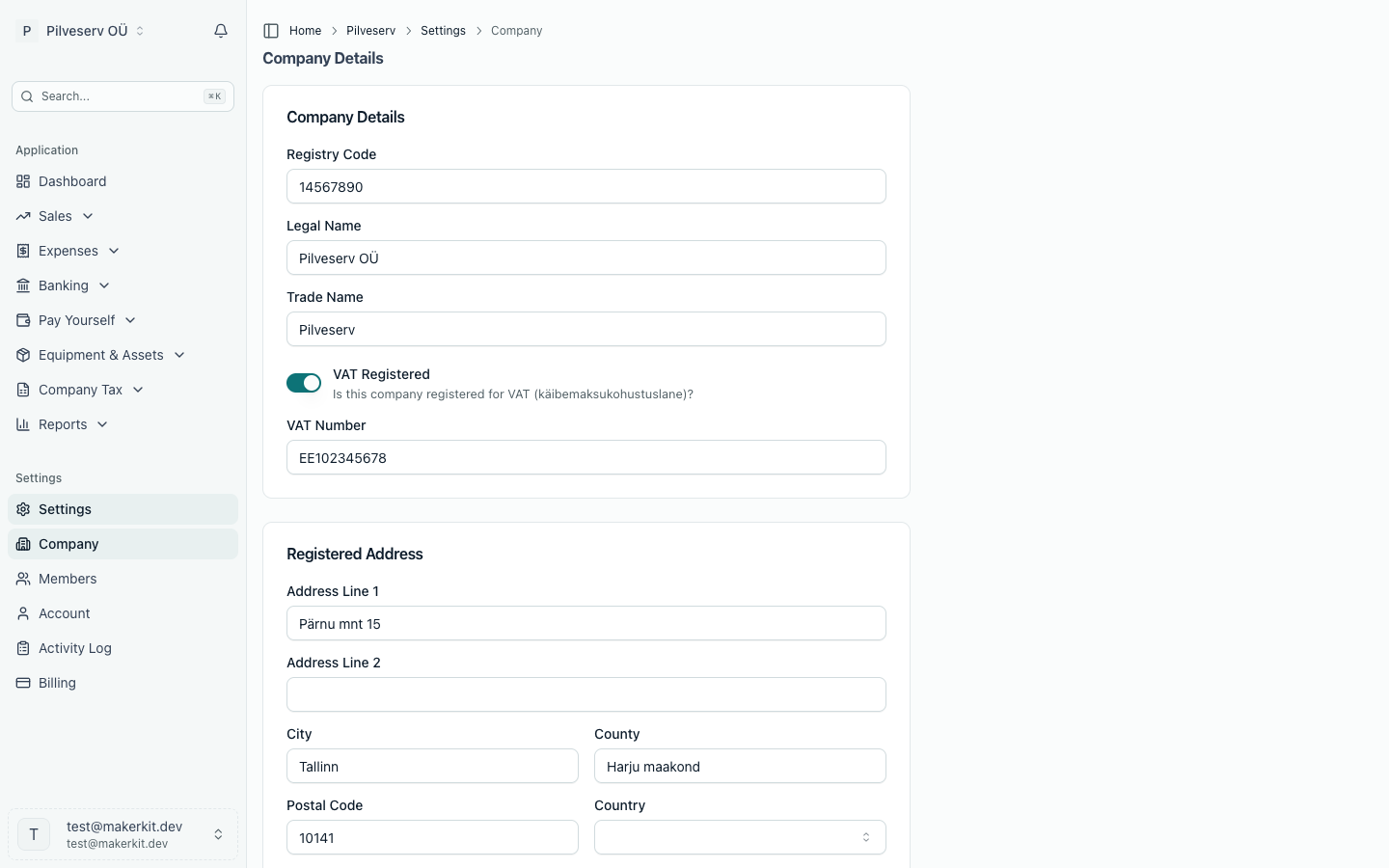
Because these details feed invoices, VAT returns and reports, it's worth knowing what each one ripples into before changing it.
Company details
- Registry Code — your eight-digit registrikood. During setup it drives the äriregister (Business Register) lookup that pre-fills the official record, and it identifies your company on invoices and filings.
- Legal Name — the official name from the Business Register, printed on your invoices.
- Trade Name — optional, for companies that trade under something snappier than the legal name.
- VAT Registered — a switch recording whether the company is käibemaksukohustuslane. Turning it on reveals the VAT number field and the VAT filing period below; turning it off hides them.
- VAT Number — EE followed by nine digits. It appears on your invoices and anchors your KMD return — see VAT.
Registered address
The address on file with the Business Register: street, city, county, postal code and country. It's pre-filled by the registry lookup, and worth keeping in step with the official record if the company moves.
Financial settings
- Financial Year Starts — the month your financial year begins; most Estonian companies use January. This sets the periods offered in Reports and defines the year your annual report covers, so a mid-life change here is a rare and deliberate event.
- Functional Currency — the primary currency your books are kept in. EUR is the default, with USD and GBP also available.
- VAT Filing Period — monthly or quarterly, shown when the company is VAT registered. It controls how often Arvello prepares a KMD return for you, and it needs to match what EMTA has assigned your company.
Invoice numbering
- Invoice Prefix — the letters in front of your invoice numbers, INV by default, giving numbers like INV-0001.
- Starting Invoice Number — the next number Arvello will use. If the company sent invoices before joining Arvello, set this to continue from the last one rather than starting again at 1.
Bank details & branding
These details appear on your invoices, so clients know where to pay:
- IBAN and Bank Name — printed as the payment details on every invoice, alongside BIC / SWIFT for clients paying from abroad.
- Account Number and Sort Code — for non-IBAN accounts, if that's how your bank works.
- Logo — PNG, JPG, SVG or WebP up to 2 MB, shown on your invoice PDFs. How it sits on the page is controlled in the invoice designer.
Display name, logo and the danger zone
Below the company form on the same tab sit the company's display name and logo — how it appears in Arvello's sidebar and company switcher, separate from the legal name on documents — plus the danger zone. That's where a member can leave the company, and where the primary owner can delete it outright: irreversible, and it takes all the company's data with it.