Recurring invoices
Recurring invoice templates for Estonian companies generate drafts on a weekly to yearly schedule — each one waits for your review and is never auto-sent.
If you bill the same client the same amount every month, there is no reason to type it out twelve times a year. A recurring template holds the invoice details and generates a fresh draft on schedule — you stay in charge of sending.
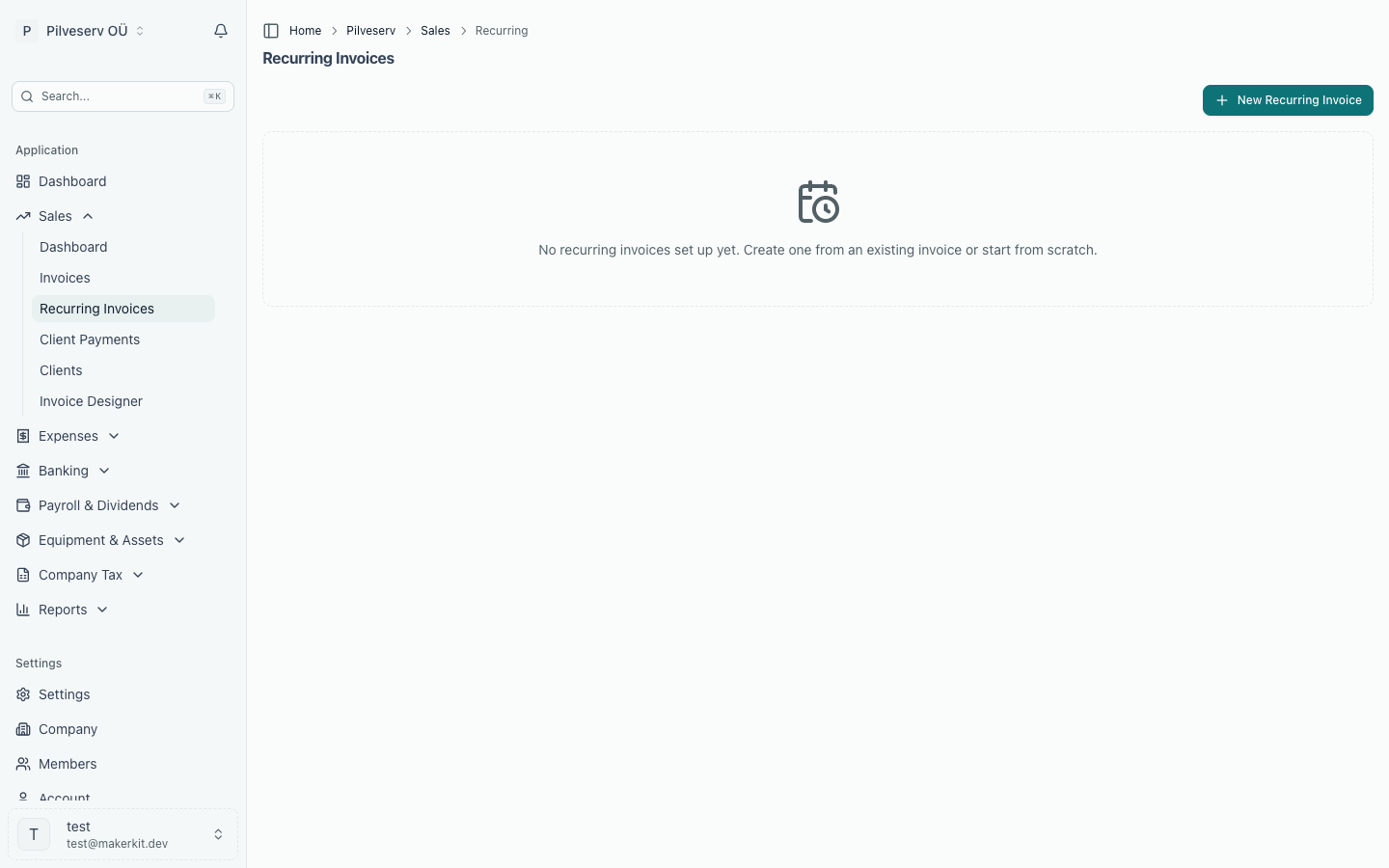
Templates live under Sales → Recurring Invoices, with search and filters for active and paused templates.
Creating a template
There are two ways in:
- From scratch — select New Recurring Invoice and fill in the template: a name (for example "Monthly Retainer"), the client, the frequency, line items with tax codes, payment terms, currency, and any reference or notes. An estimate of the totals updates as you go.
- From an existing invoice — open any sent or paid invoice and choose Make Recurring. The invoice's client and lines become the template, with a name suggested from the client and invoice number.
Line items work the same way as on a normal invoice, including the tax code per line — see Creating invoices.
Schedules and the next run
Frequency options are weekly, bi-weekly, monthly, quarterly and yearly. Each template shows its Next Date — the day the next invoice will be generated — and an optional End Date stops the template automatically once the schedule passes it.
The generated invoice's due date comes from the template's payment terms: issue date plus the number of days you set.
What happens on generation
On the scheduled day, Arvello creates a draft invoice from the template, with the scheduled date as its issue date, and advances the next date. Drafts are never sent automatically: you review, then finalise or send each one like any other invoice.
A recurring template never emails your client by itself. Every generated invoice waits as a draft until you send it.
If a template fell behind — paused for a while, or several periods missed — generation catches up, creating one draft per missed date (up to twelve in one run), and it never creates a duplicate for a date that already has an invoice.
Generate Now on any template creates the next draft immediately and advances the schedule — useful for a first run or an early bill.
Pausing and ending a template
- Pause stops generation. The template keeps its place in the list and can be Resumed at any time, picking up from the next scheduled date.
- End Date retires the template automatically once the schedule passes it.
- Delete removes the template permanently. Invoices already generated from it are untouched.