Creating invoices
How to create an invoice in Arvello: line items with Estonian VAT applied automatically — 24% standard, reverse charge for EU clients — and sequential numbering.
Creating an invoice takes a minute or two once your clients are in the system. You pick a client, add lines, and Arvello handles the VAT, the totals and — when you finalise — the invoice number and the accounting entries behind the scenes.
Everything here lives under Sales → Invoices. If you have not been through the invoice setup wizard yet, start with setting up your company.
Creating an invoice
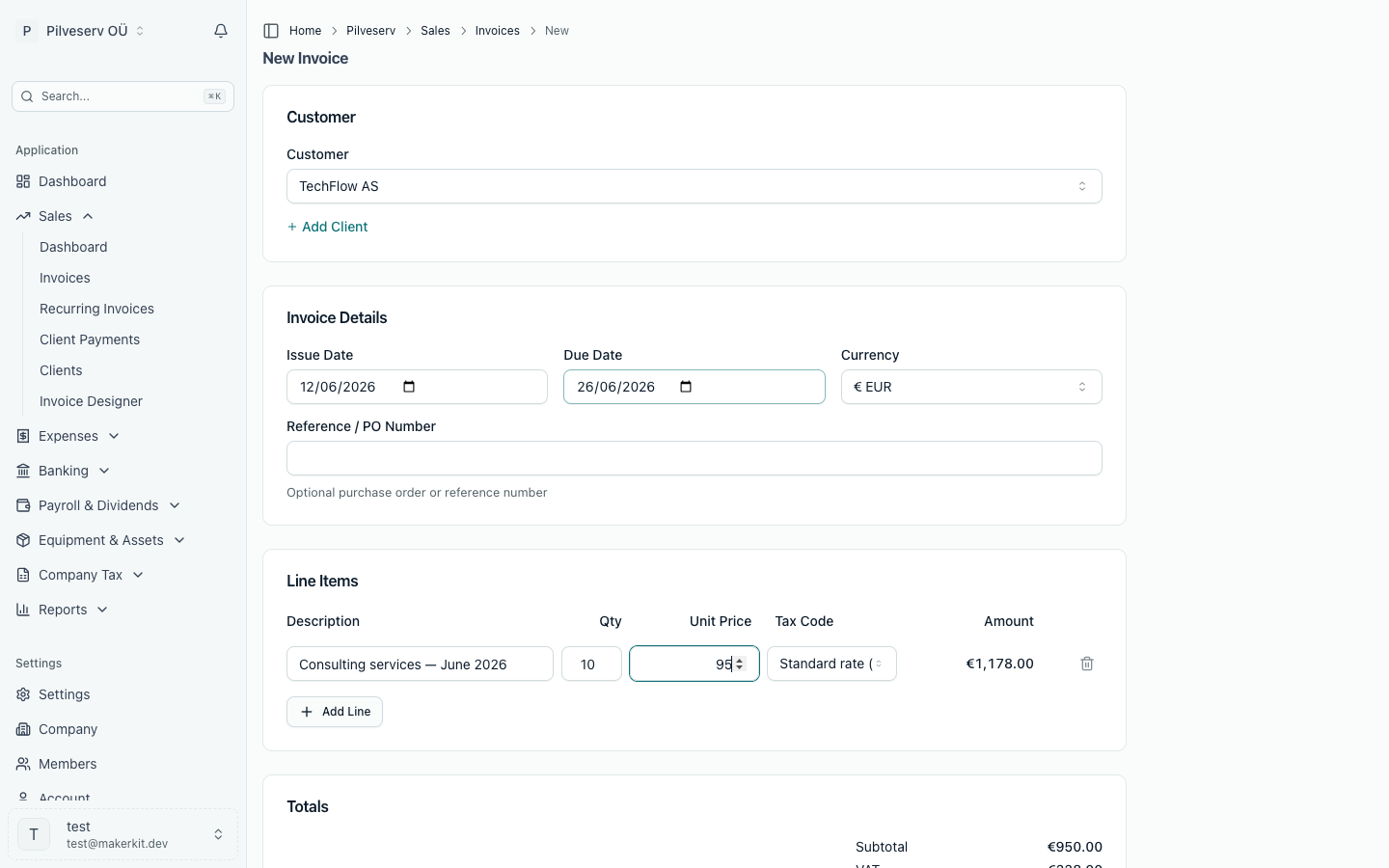
Go to Sales → Invoices and select New Invoice.
Pick a client from the list, or create one on the spot without leaving the form. Choosing a client fills in their defaults — the due date comes from their payment terms (issue date plus their default number of days), and their default currency carries over. See Clients & suppliers.
Each line has a description, quantity, unit price and tax code. Arvello picks the tax code from the client: an Estonian client gets the standard rate (24% as of 2026), an EU business with a valid VAT number gets Intra-community services (0%), where the customer accounts for the VAT (reverse charge), a business client outside the EU gets zero-rated export, and a private individual outside the EU starts at the standard rate. You can change the code on any line, and the VAT recalculates as you go — the full list is in VAT rates & tax codes.
Confirm the issue date, the due date and the supply date — the due date must be on or after the issue date. The supply date starts as the issue date; change it if the goods were delivered or the work was done on another day, or tick This invoice covers a period for a month of service. Optionally add a reference or PO number, customer notes (these appear on the PDF) and internal notes (these stay between you and your team).
Save Draft keeps the invoice editable. Finalise assigns the invoice number, creates the journal entries and locks the document, ready to download or send. Send Invoice does the finalising and the emailing in one go. A draft whose subtotal is zero can't be finalised, because there is nothing to book.
Invoicing in another currency works too: pick the currency on the form, and Arvello records the European Central Bank daily rate and the euro equivalent — your company's books are kept in euros. The invoice PDF shows the VAT in euros as well, as the VAT Act requires — see VAT on the invoice PDF. Because the books are in euros, an invoice's subtotal has to be worth at least one euro cent at its exchange rate: a 0.01 invoice in Polish złoty, for example, is worth less, so Arvello won't finalise it.
The supply date and your VAT return
Under the Estonian VAT Act (KMS § 11), VAT arises when the goods are delivered or the service is provided, or earlier if the customer pays in advance. The invoice date doesn't count. So the supply date, not the issue date, decides which month's VAT return (KMD) the sale goes on, which VAT rate applies and which exchange rate a foreign-currency invoice uses.
- Work done in June, invoiced on 2 July: set the supply date to 30 June. The sale goes on the June return, due 20 July.
- A month of service: tick This invoice covers a period and enter its first and last day. A service over a period counts as supplied when the period ends, so June's subscription is June's. A period can be at most 12 months (KMS § 11 lg 4). For a single job that took longer, leave the period unticked and enter the day it was finished.
- Goods sent to a business in another EU country follow their own rule: the VAT arises on the invoice date, or on the 15th of the month after dispatch if you invoice later. Goods sent on 30 June and invoiced on 10 July are July's.
- Paid in advance: if the customer pays before the supply, the part paid is taxed in the month the money arrived. Arvello splits the invoice between the two returns when you record the payment or match it from the bank. A payment dated in a month whose return is already approved or filed is refused, because it would change that return: reopen or amend it first under Company Tax → VAT Returns.
The PDF shows the supply date or period when it differs from the issue date, as KMS § 37 requires. The law also asks for the day an advance payment was received when it differs from the issue date. Arvello records payments only after an invoice is issued, so the PDF made when you finalise can't show one yet: once you've recorded the advance, select Regenerate PDF and the new PDF lists it. An e-invoice carries it as the delivery date or invoicing period. If the lines were supplied in different months, issue a separate invoice for each month. Arvello refuses an invoice that mixes EU goods with other lines falling in different months.
When the supply comes before the invoice, the sale is also booked as revenue on the supply date, so December's work invoiced in January lands in the right financial year. An invoice issued before its supply (an advance invoice) is booked on its issue date.
What finalising checks about the client
A draft shows a notice when finalising would be refused, or when something about the client should be checked first. Each notice links to where it's fixed. Finalising refuses:
- 0% goods to another EU country without a confirmed VAT number. A line with Intra-community supply of goods (0%) needs the client's VAT number in another EU country, confirmed in VIES (KMS § 15 lg 3¹): without it the 0% rate doesn't apply. Add or re-check the number on the client's page, or change the line's code. The VIES result and when it was checked are recorded on the invoice when it is issued (see below). Unless the stored VIES check is from the same day, finalising re-checks the number in VIES first, so the invoice records that day's answer. A Northern Ireland business with a VIES-confirmed XI number counts as one in another EU country. New means of transport and excise goods, which § 15 lg 3¹ lets go at 0% without the buyer's VAT number, have their own code: see New vehicles and excise goods below. If VIES is down for the client's country, the check can be repeated later on the client's page; the invoice for such a sale can be issued up to the 15th of the following month (KMS § 37 lg 2¹).
- A VAT number the EC Sales List can't take. On an intra-Community 0% line, goods or services, the client's VAT number goes on the VD, whose file takes only letters and digits, at most 12 after the country code. A number typed with extra text is refused there, so finalising refuses it too: correct it on the client.
- A missing address. Every invoice to a business must show the client's address (KMS § 37 lg 7 p 3), and so must an invoice to a private person for services under the EU One-Stop Shop or for a new means of transport sent to another EU country. The street line is what counts; a town alone isn't an address. A foreign address in its own format goes in the street line as written. A company that isn't VAT-registered on the invoice date isn't refused, and nor is an invoice holding only VAT-exempt or out-of-scope amounts (§ 37 lg 3).
It warns, without refusing, when a line uses an intra-Community 0% code for a client with no VAT number or country, or one in Estonia or outside the EU: such a sale stays on line 3 of the VAT return but is left off the EC Sales List (VD) and line 3.1. For services at Intra-community services (0%) it also warns when VIES hasn't confirmed the number: the 0% rate turns on the client being a business (KMS § 10 lg 4 p 9), so keep other evidence if VIES can't confirm it, such as its registration or the contract.
Special VAT cases
A few tax codes and ticks on the invoice form cover rarer sales. Each is explained in VAT rates & tax codes.
- Property. VAT exempt letting of property and VAT exempt sale of property are for letting or selling property without VAT. Finalising a property sale needs the tick The property isn't building land, and isn't a new or substantially improved building sold before or within a year of its first use, because those sales must be taxed. While you've opted to tax a letting or a sale (recorded in company settings), finalising refuses that exempt code unless you tick This property isn't one I've opted to tax.
- Domestic reverse charge. Domestic reverse charge, buyer pays the VAT (§ 41¹) is for property you opted to tax, metal waste, precious metals and the listed metal products sold to an Estonian VAT-registered business. Finalising needs the customer's Estonian VAT number confirmed in VIES, the goods named on each such line, and, for property, a Sale election in company settings.
- New vehicles. New means of transport to another EU country (0%) needs a customer in another EU country, a private buyer included.
- Professional secrecy. An advocate, notary, auditor, doctor, sworn translator or patent agent ticks Covered by professional secrecy on an invoice the duty of secrecy covers. The invoice is then left out of KMD INF Part A (VAT Act § 27(1⁴)), and it stays on the VAT return as usual.
VAT on the invoice PDF
Lines coded VAT exempt (not property) print a § 16 marking on the invoice PDF, in the invoice's language: "VAT exempt supply (§ 16 of the Estonian VAT Act)" in English, "Maksuvaba käive (käibemaksuseaduse § 16)" in Estonian. The two property codes cite their exact provision instead, such as "VAT exempt supply (§ 16(2)(2) of the Estonian VAT Act)" for a letting. For an exempt supply, the VAT Act asks the invoice to cite the subsection and point of § 16 that applies, or the matching article of the EU VAT Directive, and accepts a clear, unambiguous marking like this one in its place (§ 37(8) and (8¹)). To cite the exact provision as well, add it under Customer Notes.
When every line on an invoice carries the same note, it prints once below the totals. When the lines differ — exempt rent billed together with heating at 24%, for example — each note is numbered, and every line it applies to shows the number beside its VAT rate, such as 0% (1).
An invoice whose lines fall into more than one group also shows a small table above the totals. Each VAT rate (0% included) is a group, and so are exempt supplies and supplies not subject to VAT. The table lists the amount excluding VAT and the VAT for each rate, highest first, then the exempt amount and any amount not subject to VAT. The VAT Act asks for the taxable amount per rate (§ 37(7)(9)). An invoice whose lines all fall in one group shows no table, because its subtotal is already that amount.
An invoice in another currency that charges VAT also shows the VAT in euros, on its own line under the VAT total: VAT in EUR on an English invoice, Käibemaks eurodes on an Estonian one. The VAT Act asks for the VAT amount in euros whatever currency the invoice is in (§ 37(7)(10)). The figure is the one in your books: the VAT converted at the European Central Bank rate stored on the invoice. For example, a US dollar invoice with $240.00 of VAT at a rate of 1 EUR = 1.0842 USD shows VAT in EUR €221.36. A credit note in another currency shows its VAT in euros too. An invoice that charges no VAT has no euro line, because zero is the same in every currency.
How invoice numbers are assigned
Drafts have no number. The number is assigned at the moment you finalise, by combining your invoice prefix with the next number in your sequence — with the default settings that produces INV-000001, INV-000002 and so on. Because numbering happens at finalisation, deleting a draft never leaves a gap in the sequence.
You chose the prefix and starting number during the invoice setup wizard; both can be changed at any time in company settings.
Drafts versus sent invoices
What you can do with an invoice depends entirely on its status.
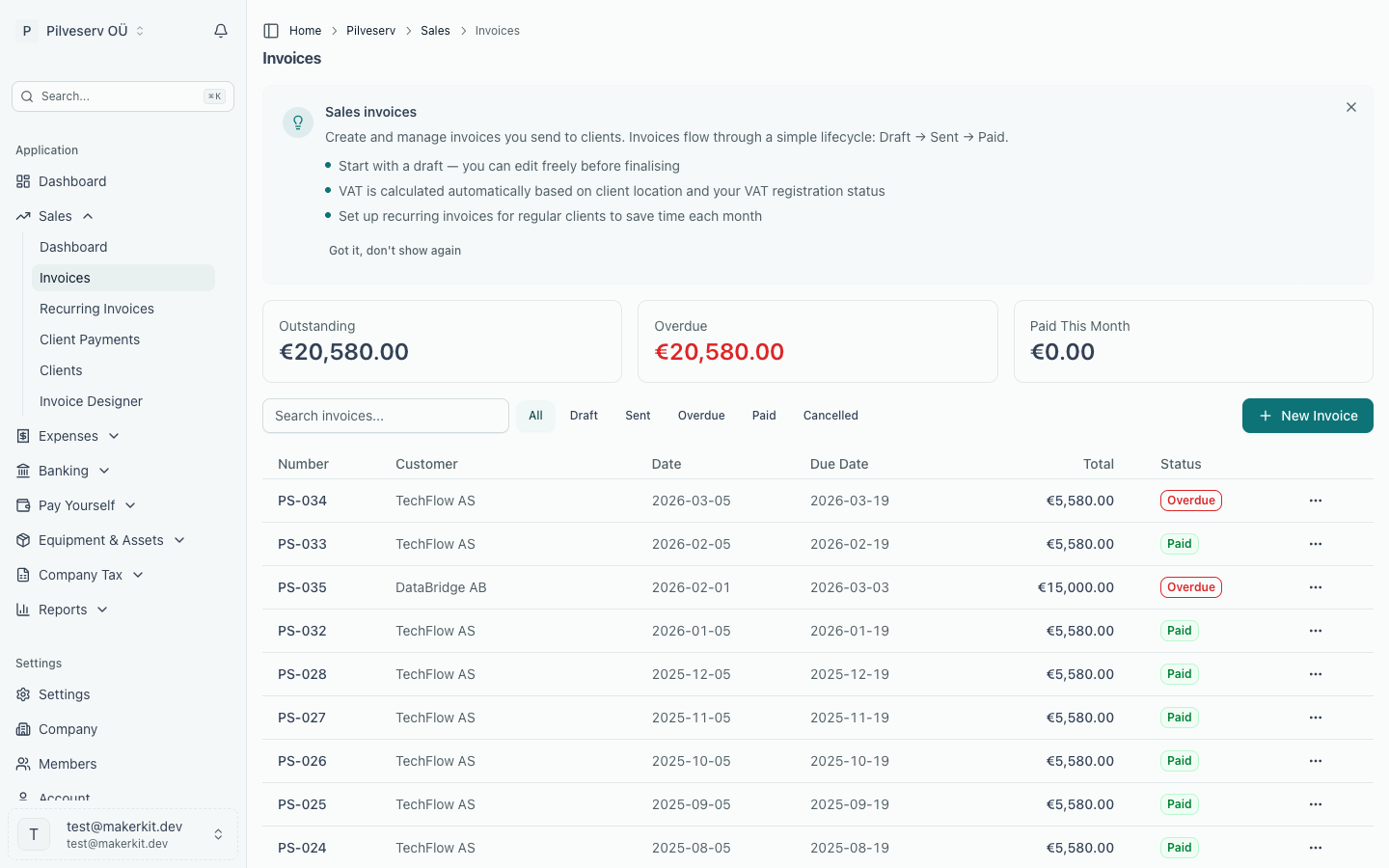
| Status | What it means | What you can do |
|---|---|---|
| Draft | Not yet finalised, no number | Edit anything, delete |
| Sent | Finalised: number assigned, entries posted | Resend, fix and re-issue or cancel (while unpaid), duplicate, issue a credit note |
| Partial | Sent, with part of the total paid | Same as Sent, except cancelling |
| Overdue | Sent and past its due date | Same as Sent |
| Paid | Fully paid | Duplicate, regenerate the PDF, issue a credit note |
| Partly credited | Sent, with part of the total reduced by a credit note | Same as Sent, except cancelling |
| Credited | Credit notes cover the whole total | View, regenerate the PDF |
| Cancelled | Cancelled: journal entries reversed | View only |
A credit note itself appears in the same list with the status Credit note.
A finalised invoice cannot be edited. It has accounting entries behind it, and under Estonian rules an issued invoice is corrected by cancelling it or with a credit note, never changed in place. So if something is wrong, there are two ways to correct it:
- Fix and re-issue, while no payment is recorded, no credit note has been issued and the month's VAT return has not been filed. Arvello cancels the invoice (reversing its entries) and opens a copy as a new draft, with the same dates and lines and the client's and your company's details as they are now. Correct what was wrong, whether that is the client's address, a line or a rate, then finalise the copy. It takes the next number, and the cancelled invoice keeps its own number, marked cancelled. If you had emailed the invoice, tell the client it has been replaced. Once an e-invoice of it has been sent, it is in the client's books or may still arrive there, so it can't be cancelled or fixed and re-issued: use a credit note.
- A credit note in every other case, and whenever only part of the invoice needs correcting. Then issue a new invoice if one is needed.
Who the invoice was issued to
When you finalise an invoice, Arvello records your company's details and the client's exactly as they are printed on it: names, registry codes, VAT numbers, addresses and bank details, plus the client's VIES check. Editing the client or your company settings afterwards changes new and draft invoices only. A finalised invoice, its PDF, its e-invoice and the VAT return annexes keep the details it was issued with. When a client's details have changed since, the invoice page says so and shows which correction is open to it.
Once finalised, an invoice can only be cancelled (or fixed and re-issued), credited or duplicated, never edited. Worth a glance over the details before confirming.
Duplicating an invoice
Duplicate on any invoice creates a fresh draft with the same client, lines and notes. The issue date becomes today, the due date keeps the same payment-terms gap as the original, and the reference field is cleared. Handy for near-identical jobs; for genuinely regular billing, recurring invoices save you the clicking.
Common questions
A line has the wrong VAT rate
While the invoice is a draft, change the tax code on that line and the VAT recalculates immediately. The default comes from the client's country and VAT number, so if the wrong rate keeps appearing, check those fields on the contact. If the invoice is already finalised, use Fix and re-issue while it is unpaid and its month is unfiled, or issue a credit note for the wrong line and invoice it again at the right rate. Each code, and where it reports on the KMD (the Estonian VAT return), is in VAT rates & tax codes.
I want to change the numbering
The invoice prefix and the next sequence number live in company settings. Changes apply to invoices finalised from that point on; existing numbers stay as they are. If you moved to Arvello from other software, set the next number to continue from your last invoice.